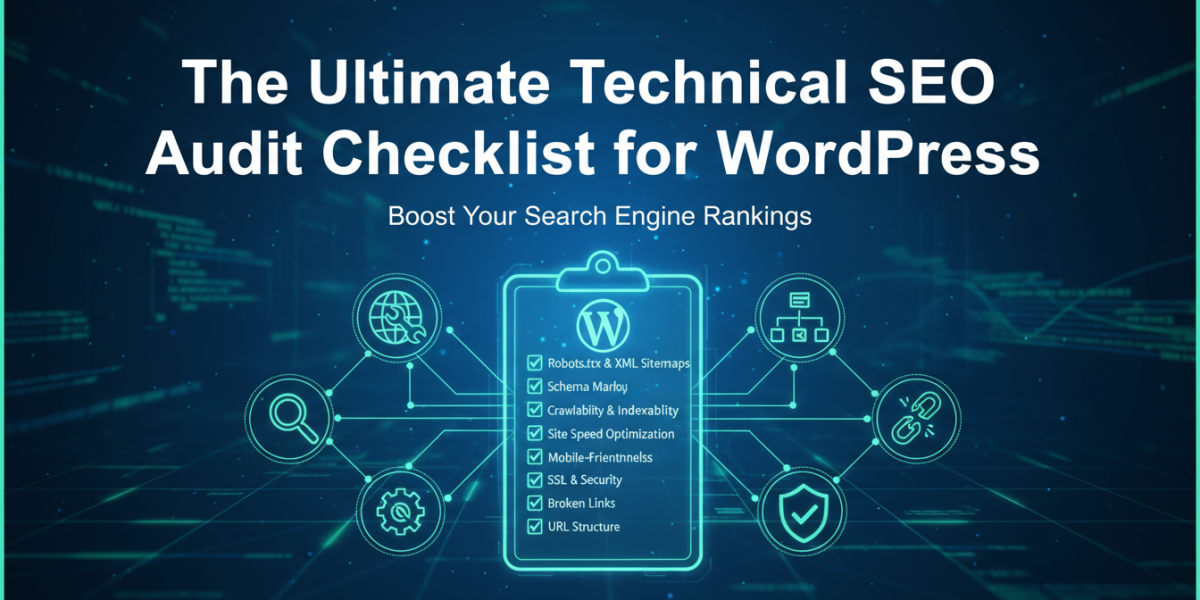
If your WordPress site isn’t ranking the way you’d expect — despite solid content and a reasonable backlink profile — the problem might be hiding under the hood. A thorough technical SEO audit for WordPress can surface issues that quietly drain your visibility: crawl blocks, slow load times, duplicate content, broken links, and dozens of other gremlins that search engines notice even when you don’t.
This guide walks you through a comprehensive technical SEO audit checklist built specifically for WordPress. Whether you’re auditing your own site or running checks for a client, these steps will help you find and fix the issues that matter most.
Why WordPress Sites Need a Dedicated Technical SEO Approach
WordPress powers around 43% of all websites on the internet — which makes it a well-understood platform, but also one with specific technical quirks that can hurt search performance if left unaddressed.
Out-of-the-box WordPress installations come with default settings that aren’t always SEO-friendly. Permalink structures, XML sitemaps, category and tag archives, and plugin conflicts can all create technical problems unique to the platform. Generic SEO advice won’t always cut it here; you need checks tailored to how WordPress actually works.
Setting Up Your Audit: Tools You’ll Actually Need
Before you start ticking boxes, get the right tools in place. You don’t need to pay for everything — a solid free toolkit goes a long way.
Essential Free Tools
- Google Search Console — your first port of call for crawl errors, coverage reports, and Core Web Vitals data
- Google PageSpeed Insights — for page-level performance analysis
- Screaming Frog SEO Spider (free up to 500 URLs) — for site-wide crawl analysis
- Ahrefs Webmaster Tools or Semrush free tier — for backlink and indexing insights
Recommended Paid Options
For larger sites, tools like Ahrefs, Semrush, or Sitebulb offer deeper crawl data, historical comparisons, and issue prioritisation. If you’re auditing a site with thousands of pages, the investment pays for itself quickly.
Crawlability and Indexation
This is where every technical SEO audit should begin. If search engines can’t crawl or index your pages, nothing else matters.
Check Your robots.txt File
Your robots.txt file lives at yourdomain.com/robots.txt. Open it and read it carefully. It’s surprisingly common to find lines like Disallow: / — which blocks all crawlers — left in place after development or staging work.
Make sure you’re not blocking critical directories or pages. WordPress SEO plugins like Yoast SEO or Rank Math generate robots.txt files automatically, but they can be overridden by hosting-level configurations, so always verify the live version.
Review Google Search Console Coverage
Navigate to the Coverage or Indexing report in Search Console. Look for pages flagged as "Excluded," "Crawled — currently not indexed," or "Discovered — currently not indexed."
These aren’t always problems, but they warrant investigation. If product pages or blog posts are showing up as excluded, you need to understand why — and in many cases, fix it.
Noindex Tags — Intended or Not?
In Yoast SEO or Rank Math, individual pages can be marked as noindex accidentally. This happens particularly on tag archives, author pages, and paginated pages. Audit these settings across your site and make deliberate decisions about what should and shouldn’t be indexed.
Site Structure and URL Health
Permalink Settings
Go to Settings > Permalinks in your WordPress dashboard. The default ?p=123 structure is terrible for SEO and readability. Use the Post Name option (/sample-post/) or a custom structure that reflects your site’s architecture.
Changing this on a live site requires setting up 301 redirects from old URLs to new ones — a step many site owners skip, resulting in broken links and lost link equity.
Duplicate Content Issues
WordPress creates multiple archive pages — by category, tag, author, date — which can lead to significant duplicate content problems. Use a canonical tag strategy to consolidate these, and consider disabling low-value archives entirely.
Tools like Screaming Frog can identify pages with duplicate or near-duplicate title tags and meta descriptions, which is often a symptom of deeper structural duplication.
Technical SEO Audit: Page Speed and Core Web Vitals
Google’s Core Web Vitals — Largest Contentful Paint (LCP), Cumulative Layout Shift (CLS), and Interaction to Next Paint (INP) — became official ranking factors in 2024. Poor scores directly impact your rankings, particularly in competitive niches.
Common WordPress Speed Culprits
Unoptimised images are the single most common cause of slow WordPress sites. Every image should be compressed and served in a modern format like WebP. Plugins like ShortPixel, Imagify, or the native WordPress image optimisation in newer versions can handle this automatically.
Render-blocking JavaScript and CSS is another frequent issue. Use a caching plugin like WP Rocket or W3 Total Cache to defer non-critical scripts, minify CSS and JS files, and enable lazy loading for off-screen elements.
Hosting infrastructure matters enormously. A slow shared hosting environment will limit how much any plugin can improve your score. If you’re consistently seeing LCP times over 4 seconds, the problem might be at the server level.
How to Measure It
Run your key pages through PageSpeed Insights and note both the mobile and desktop scores. Focus on the Field Data section (real user data) rather than Lab Data alone — it’s what Google actually uses for ranking. Aim for LCP under 2.5 seconds and CLS under 0.1.
HTTPS, Security, and Trust Signals
SSL Certificate
Your site should be running entirely over HTTPS. Check that there are no mixed content warnings — these occur when a page is served over HTTPS but loads resources (images, scripts) over HTTP. Use a browser tool like Chrome DevTools or the free Why No Padlock? site to scan for mixed content.
Security Headers
While not a direct ranking factor, security headers like Content-Security-Policy, X-Frame-Options, and Strict-Transport-Security build trust with users and are increasingly expected by modern browsers. Check your headers at securityheaders.com.
XML Sitemaps and Schema Markup
Sitemap Health
Your sitemap should include all indexable pages and nothing else. Yoast SEO generates a sitemap at /sitemap_index.xml by default. Submit it in Google Search Console and check for any errors flagged against individual URLs.
Watch out for sitemaps that include noindex pages — this sends mixed signals to search engines. Run your sitemap through Screaming Frog to check each URL’s status code and meta robots tag.
Structured Data (Schema Markup)
Schema markup doesn’t directly boost rankings, but it can improve how your content appears in search results — through rich snippets like star ratings, FAQs, event dates, and recipe cards. For WordPress, plugins like Rank Math and Schema Pro make implementation straightforward.
After adding schema, test it with Google’s Rich Results Test tool to confirm it’s valid and eligible for enhanced display.
Internal Linking and Navigation
A healthy internal linking structure does two things: it helps users navigate your site, and it distributes link equity across your pages efficiently.
Run a Screaming Frog crawl and look for:
- Orphan pages — pages with no internal links pointing to them (Search engines may never find these)
- Pages with only one or two internal links — usually important content that’s been buried
- Redirect chains in internal links — links pointing to old URLs that redirect to new ones waste crawl budget
Fix these systematically, starting with your highest-priority pages.
Mobile Usability
Google uses mobile-first indexing, meaning the mobile version of your site is what it primarily crawls and ranks. Go to Search Console’s Mobile Usability report and resolve any flagged issues — particularly around tap targets being too close together or content being wider than the screen.
Test your site on real devices, not just emulators. A theme that looks fine on desktop can behave poorly on a mid-range Android phone with a slower connection.
Frequently Asked Questions
What is a technical SEO audit and why does it matter for WordPress?
A technical SEO audit is a systematic review of a website’s technical infrastructure to identify issues affecting search engine crawling, indexing, and ranking. For WordPress sites specifically, it matters because the platform has several default settings and plugin interactions that can create hidden problems — even when your content is high quality.
How often should I run a technical SEO audit on my WordPress site?
For most sites, a full audit every six to twelve months is a reasonable baseline. If you’re making significant changes — launching new sections, migrating to a new host, or updating your theme — run a focused audit before and after the change. Search Console should be reviewed monthly as a minimum.
Can I do a technical SEO audit myself or do I need a professional?
You can absolutely handle the basics yourself using free tools like Google Search Console and Screaming Frog. However, larger or more complex sites often benefit from a professional audit — particularly when issues like JavaScript rendering, structured data errors, or server-side configurations are involved.
Is it worth fixing technical SEO issues on an older WordPress site?
Yes, often significantly so. Many older WordPress sites carry years of accumulated technical debt — legacy redirects, outdated plugins, deprecated schema markup, and slow hosting. Resolving these issues can produce meaningful ranking improvements without any new content being written.
How long does a WordPress technical SEO audit take?
For a small to medium site (under 500 pages), a thorough audit typically takes four to eight hours including documentation. Larger sites with thousands of URLs can take several days to audit properly, particularly when crawl data needs to be segmented and analysed in detail.
Conclusion
A technical SEO audit for WordPress isn’t a one-and-done task — it’s an ongoing process of identifying friction points and removing them systematically. The checklist above covers the most impactful areas: crawlability, site speed, indexation, duplicate content, structured data, internal linking, and mobile performance.
The good news is that most WordPress sites have fixable issues, and even resolving a handful of high-priority problems can produce noticeable improvements in visibility and traffic. Start with Google Search Console — it’s free, it reflects real data, and it will point you toward the most pressing issues on your specific site. Then work through the other areas methodically, and don’t try to fix everything at once. Prioritise, implement, measure, and repeat.
Ready to take the next step? If you’d like expert help running a full technical SEO audit on your WordPress site — or if you’re not sure where to start — our team is happy to help. Reach out via email at moc.ssobebolg@ofni or give us a call at +353 1 868 2345. We’ll talk through your situation and suggest the most practical way forward.
Related Posts
 SEO Audit Service
 8 Technical SEO Audits That Will Find Your Hidden Traffic Leaks
 Uncover Hidden SEO Issues with a Technical Audit
 On page SEO checklist
 Technical SEO Audit for Dublin Websites and Startups
 Technical SEO Audit for Dublin Websites
 The Ultimate WordPress SEO Setup Guide: Step-by-Step From Install to Indexing
 How much do Dublin agencies charge for a technical SEO audit?