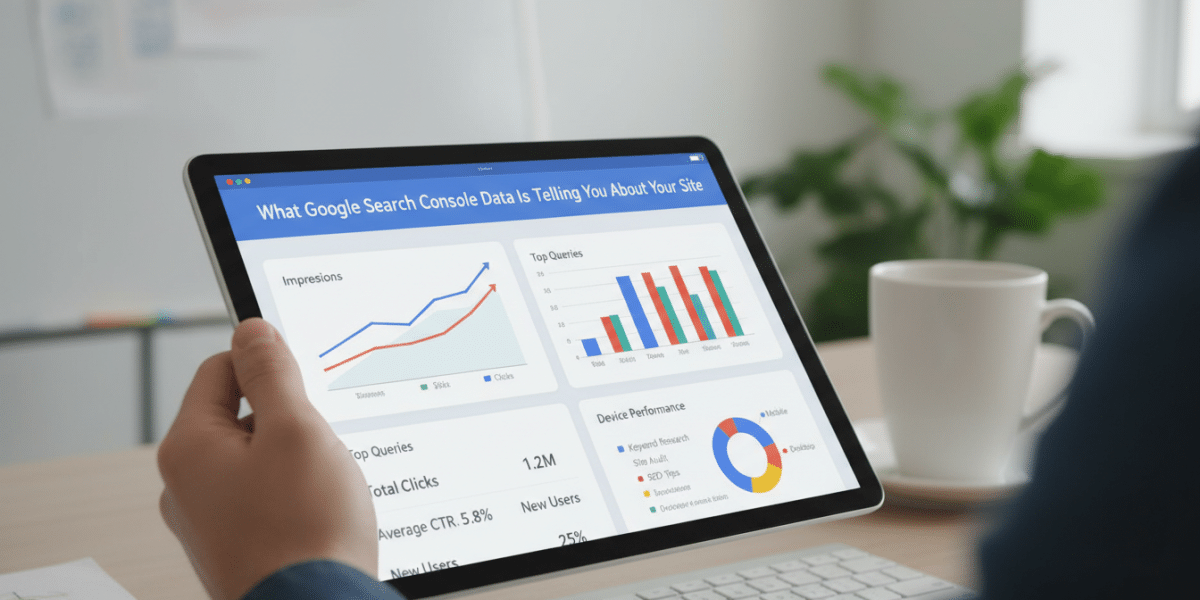
Unlocking Your Site’s Potential: What Google Search Console Data Is Telling You About Your Site
Imagine your website as a bustling storefront on the busiest street in the world – Google. How many people walk past? How many stop to look in your window? How many actually step inside? And once they’re inside, do they find what they’re looking for quickly, or do they get lost, frustrated, and leave?
Understanding these dynamics is absolutely crucial for any website owner, marketer, or SEO professional. And thankfully, you don’t have to guess. Google gives you a direct, unfiltered line of communication to answer all these questions and more through a powerful, free tool: Google Search Console. The Google Search Console data available to you is like having a direct intelligence report from the search giant itself, offering a treasure trove of insights into how your site performs in search results.
But simply having the data isn’t enough. The real magic happens when you understand what that data means and, more importantly, what it’s telling you about your site’s health, visibility, and user experience. Let’s dive in and decode the messages hidden within your Google Search Console data.
The Heartbeat of Your Site: Understanding the Performance Report
The Performance Report is often the first place people go in Google Search Console, and for good reason. It’s where you see the cold, hard numbers about your site’s visibility and engagement in Google Search.
Clicks & Impressions: Your Digital Footprint
- Impressions: This tells you how many times your site appeared in Google search results for a given query. Think of it as how many times your storefront window was seen by passersby. High impressions are good – it means Google is considering your content relevant for various searches.
- Clicks: This is the number of times users actually clicked on your listing and visited your site. These are the people who stopped, looked, and decided to step inside.
What the data is telling you:
If you have high impressions but low clicks for a particular set of keywords, it means your content is visible, but it’s not compelling enough to earn the click. This is a critical insight.
Actionable tip: Look at your title tags and meta descriptions for these high-impression, low-click keywords. Are they enticing? Do they accurately reflect the content? Are they standing out from your competitors? Sometimes a simple rephrasing can make a huge difference in your click-through rate.
Click-Through Rate (CTR): Are You Enticing Enough?
CTR is the percentage of impressions that result in a click (Clicks ÷ Impressions). It’s a direct measure of how attractive your search listing is.
What the data is telling you:
A low CTR indicates that even though your page is showing up, users aren’t motivated to click on it. A high CTR suggests your listing is effectively grabbing attention.
Actionable tip: Filter your Performance Report by pages and then sort by CTR. Identify pages with high impressions but low CTR. Examine the snippets for these pages in search results. Are they engaging? Do they use strong verbs? Do they set clear expectations? Consider A/B testing different title tags and meta descriptions to see what resonates more with users.
Average Position: Where Do You Stand?
This metric shows your site’s average ranking position in Google search results for various queries. A position of ‘1’ is the top spot, ’10’ means you’re at the bottom of the first page, and anything higher means you’re on subsequent pages.
What the data is telling you:
Pages ranking on page two or three (positions 11-30) often have untapped potential. They’re “almost there” but not quite getting the visibility of page one.
Actionable tip: Identify keywords where you rank in positions 8-20. These are often called “striking distance” keywords. With a bit of optimisation – perhaps adding more depth to the content, improving internal linking, or earning a few more relevant backlinks – you could push these pages onto the first page, dramatically increasing their impressions and clicks.
Ensuring Google Sees You: Indexing & Coverage
Google can only show users pages it knows about and has added to its massive index. The Indexing (formerly Coverage) Report in Google Search Console is your direct line to understanding if Google is successfully discovering, crawling, and indexing your content.
Page Indexing: Are All Your Pages Known?
This report shows you which of your pages Google has indexed and which it hasn’t, along with the reasons why.
What the data is telling you:
- “Indexed”: Great, Google knows about these pages.
- “Submitted and indexed”: Even better, Google found these pages through your sitemap and indexed them.
- “Excluded”: This is where you need to pay attention. Common reasons include “Discovered – currently not indexed” (Google knows about it but hasn’t crawled/indexed it yet), “Crawled – currently not indexed” (Google crawled it but decided not to index it), “Blocked by robots.txt” (you told Google not to crawl it), or “Noindex tag” (you told Google not to index it).
Actionable tip:
- “Discovered – currently not indexed” or “Crawled – currently not indexed”: For important pages, this might indicate content quality issues, a lack of internal links pointing to it, or Google perceiving it as duplicate. Review the content, improve internal linking, and ensure it offers unique value.
- “Blocked by robots.txt” or “Noindex tag”: Ensure this is intentional. You might block admin pages or outdated content, but if critical content is blocked, you’ve found a major issue. Update your robots.txt or remove the noindex tag.
- “Soft 404”: This means Google found a page that returned a 200 (OK) status code but looked like an error page to users. This can confuse search engines and waste crawl budget. Ensure your 404 pages return a 404 status and that your valid pages return a 200.
Sitemaps: Your Site’s Digital Map
Sitemaps are essentially a list of all the URLs on your site that you want Google to know about. Submitting an XML sitemap is like handing Google a complete, organised map of your storefront.
What the data is telling you:
The Sitemaps report tells you if your sitemaps were successfully processed and how many URLs from them have been indexed. If you see a significant discrepancy between “Submitted” and “Indexed,” it suggests Google might be having trouble with some of your content.
Actionable tip: Always submit an up-to-date XML sitemap. If the number of indexed URLs is much lower than submitted URLs, cross-reference this with the “Excluded” section of the Page Indexing report to understand why Google isn’t indexing them. Ensure your sitemap only contains canonical versions of pages you want indexed.
The User Experience Factor: Core Web Vitals & Mobile Usability
Google’s algorithms increasingly prioritize user experience. Search Console offers dedicated reports to help you meet these expectations.
Core Web Vitals: Measuring User Happiness
Core Web Vitals are a set of specific, measurable metrics related to page speed, responsiveness, and visual stability. They directly impact how users perceive your site’s performance.
- Largest Contentful Paint (LCP): How long it takes for the main content of your page to load.
- First Input Delay (FID): How long it takes for your page to become interactive after a user tries to click something. (In GSC, this is often represented by Total Blocking Time, a lab metric correlated with FID).
- Cumulative Layout Shift (CLS): How much your page layout shifts around unexpectedly during loading.
What the data is telling you:
- “Poor” URLs: These pages are likely frustrating users and could be negatively impacting your rankings.
- “Needs improvement” URLs: These are decent but have room to get better and provide a smoother experience.
- “Good” URLs: You’re doing well here.
Actionable tip: Focus on fixing “Poor” URLs first. For LCP, look into optimising images (size, format, lazy loading), improving server response times, and using a CDN. For FID/TBT, minimize JavaScript execution and third-party script usage. For CLS, ensure images and embeds have explicit dimensions and avoid injecting content above existing content. Use the “PageSpeed Insights” tool (linked from GSC) for specific recommendations.
Mobile Usability: Are You Smartphone Friendly?
With most searches now happening on mobile devices, having a mobile-friendly website is no longer optional; it’s essential. This report highlights specific issues that make your site difficult to use on smartphones.
What the data is telling you:
Errors like “Text too small to read,” “Content wider than screen,” or “Clickable elements too close together” mean your site is providing a subpar experience for mobile users.
Actionable tip: Address all reported mobile usability issues immediately. Use a responsive design that adapts your site seamlessly to different screen sizes. Ensure fonts are legible, tap targets are generously spaced, and content fits within the viewport without horizontal scrolling.
Beyond the Basics: Other Vital GSC Insights
While Performance, Indexing, and Core Web Vitals are often the most frequently checked reports, other sections of Google Search Console data offer crucial insights into your site’s overall health and authority.
Links: Your Site’s Network of Authority
This report shows you which sites link to yours (External Links) and which of your own pages link to each other (Internal Links). It also highlights your “Top linking text” and “Top linked pages.”
What the data is telling you:
- External Links: Backlinks are a major ranking factor. This shows you who is vouching for your content. A sudden drop might indicate an issue, while a steady increase suggests growing authority. It also identifies potentially spammy links you might want to disavow.
- Internal Links: These help Google understand the structure of your site and pass “link equity” between your pages. Pages with many internal links are generally considered more important by Google.
Actionable tip:
- External Links: Analyze your top linking sites. Are they authoritative? If you find many low-quality or spammy links pointing to your site (often from negative SEO attacks), consider using the Disavow Tool.
- Internal Links: Identify important “pillar” content pages that don’t have many internal links. Strategically add links from relevant, high-authority pages on your site to boost their visibility and ranking potential.
Security & Manual Actions: Staying Safe and Compliant
These critical reports are hopefully empty for your site, but if they light up, they demand immediate attention.
What the data is telling you:
- Security Issues: If your site has been hacked, contains malware, or exhibits other security vulnerabilities, this report will alert you.
- Manual Actions: This is Google’s way of telling you that a human reviewer has detected a policy violation on your site (e.g., spammy content, cloaking, unnatural links) and has applied a penalty, which can severely impact your rankings.
Actionable tip:
- Security Issues: Act swiftly. Remove the malicious code, secure your site, and then request a review through Search Console. Google wants to help you protect users.
- Manual Actions: Read the details of the action carefully. Fix the problem completely, then submit a reconsideration request. This often requires significant effort to demonstrate compliance.
Turning Data into Action: Your Strategic Toolkit
Understanding what Google Search Console data is telling you is the first step. The next, and most crucial, is to translate those insights into a practical, ongoing strategy.
- Regular Monitoring: Make checking GSC a routine. Daily, weekly, or monthly, depending on your site’s activity and size. This allows you to catch issues early.
- Prioritize Issues: You won’t be able to fix everything at once. Focus on “Poor” Core Web Vitals, critical indexing errors, and high-impression, low-CTR keywords first. These often offer the biggest impact for your effort.
- Test and Measure: When you make changes based on GSC data, don’t just set it and forget it. Monitor the relevant reports to see if your changes had the desired effect. Did improving your title tag increase CTR? Did fixing indexing issues lead to more indexed pages?
- Content Audit: Use the Performance Report to identify content gaps, underperforming pages that need updates, or even pages that might be good candidates for consolidation or removal if they’re no longer relevant.
- Technical SEO Improvements: GSC is your technical SEO radar. Use it to diagnose and fix crawl errors, sitemap issues, and mobile usability problems that hinder your site’s performance.
Conclusion
Google Search Console isn’t just another analytics tool; it’s your direct feedback loop from Google, telling you precisely how your site is perceived and performing in the world’s largest search engine. By diligently diving into the Google Search Console data, you gain invaluable insights into your site’s visibility, user experience, technical health, and overall authority.
From optimising titles to improve CTR, to fixing indexing errors that prevent your content from being seen, to enhancing page speed for a better user experience, the data in GSC empowers you to make informed, strategic decisions. Don’t let this powerful tool gather dust. Embrace the insights it offers, turn data into action, and watch your website not just survive, but thrive in the competitive landscape of online search. Your site’s potential is waiting to be unlocked.
Dublin's ROI-Driven Digital Marketing Agency Home
Related Posts
 Simple Ways to Make Google Index Your Site Faster
 Keywords hidden for 46 of Google search console clicks
 Is Google search console hiding data from you
 Google
search console anonymizes tons of queries updates help doc after ahrefs study
Google
search console anonymizes tons of queries updates help doc after ahrefs study Why Your Site Isnʼt Indexing and How to Fix It Quickly
 Google search console insights for ga4 properties now available
 Google search console link counts keep falling a lot
 Google search console bug incorrect number of indexed pages