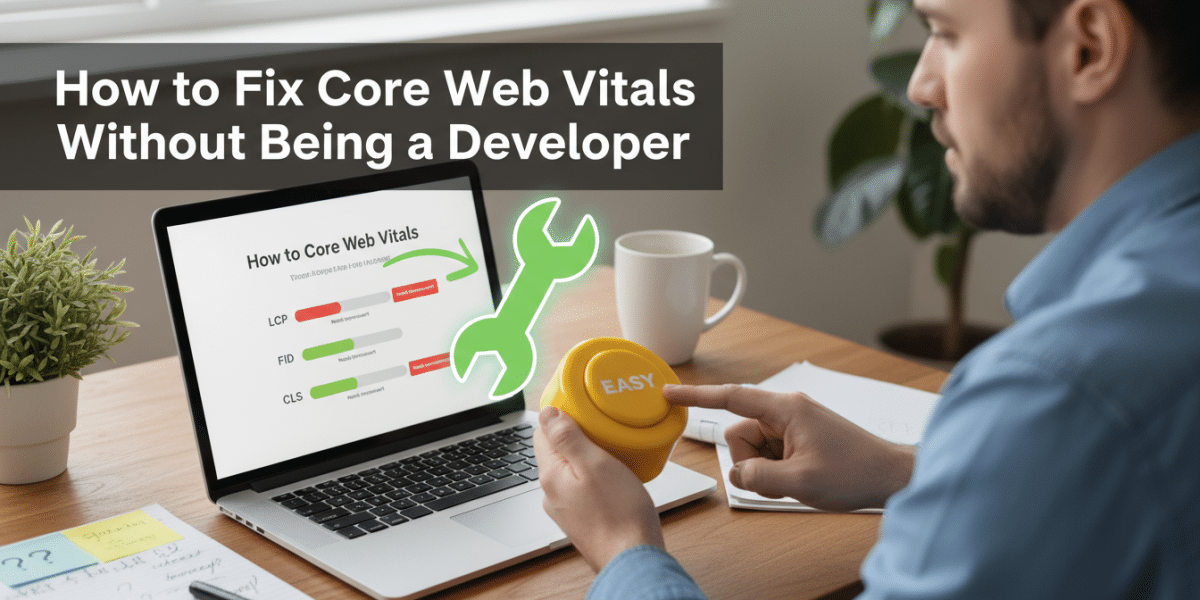
How to Fix Core Web Vitals Without Being a Developer
In the fast-paced world of the internet, a website’s speed and user experience aren’t just niceties – they’re absolute necessities. Google, in its unending quest to provide the best search results, codified these critical aspects into what it calls Core Web Vitals. You might have heard the terms: Largest Contentful Paint (LCP), First Input Delay (FID), and Cumulative Layout Shift (CLS). They sound intimidating, like something only a seasoned developer in a dimly lit server room could possibly understand, let alone fix.
But here’s the secret: you don’t need to be a coding wizard to make a significant positive impact on your Core Web Vitals. While complex issues might eventually require a developer’s touch, there’s a surprising amount you can do yourself. This article is your plain-language guide to understanding these vital metrics and taking actionable steps to improve them, all without writing a single line of code. Get ready to empower yourself and boost your website’s performance!
Demystifying Core Web Vitals: What You Need to Know (Simply)
Before we jump into the fixes, let’s break down what each Core Web Vital actually measures. Think of them as three key aspects of your website’s first impression and ongoing experience for a user.
Largest Contentful Paint (LCP): The Loading Experience
LCP measures the time it takes for the largest image or text block on your page to become visible within the user’s viewport. In simpler terms, it’s about how quickly your main content loads and becomes useful. A slow LCP often means visitors are staring at a blank or incomplete screen for too long, which is a major frustration point. Google aims for an LCP of 2.5 seconds or less.
First Input Delay (FID): The Interactivity Factor (and its successor, INP)
FID measures the time from when a user first interacts with your page (like clicking a button or tapping a link) to when the browser is actually able to respond to that interaction. A high FID means there’s a delay between a user’s action and the website’s response, making the site feel sluggish or broken. Google aims for an FID of 100 milliseconds or less.
It’s important to note that FID is being replaced by Interaction to Next Paint (INP) in March 2024. INP measures the entire delay of a user interaction, from the click/tap to the point where the visual result of that interaction is actually painted on the screen. The goal for INP is 200 milliseconds or less. For our purposes, the fixes for FID generally apply to INP as well, as both focus on responsive interactivity.
Cumulative Layout Shift (CLS): The Visual Stability Test
CLS measures how much unexpected layout shift occurs on the page during its loading phase. Have you ever gone to click a button, only for an image or an ad to suddenly load above it, pushing everything down and making you click the wrong thing? That’s a layout shift. It’s incredibly annoying and creates a poor user experience. Google aims for a CLS score of 0.1 or less.
Your Non-Developer Toolkit: Essential Resources
Before you start “fixing” anything, you need to know where you stand. Fortunately, Google and other tools provide excellent, free resources that don’t require any coding knowledge to use.
Google Search Console: Your Starting Point
This is your primary connection to Google’s view of your website. Under “Core Web Vitals,” you’ll find reports that show which pages on your site are performing poorly (or well) for each metric. It breaks it down by “mobile” and “desktop,” giving you a high-level overview of where the biggest problems lie. It won’t tell you how to fix them, but it will tell you what pages need attention.
PageSpeed Insights: Deep Dive into Metrics
PageSpeed Insights is the Holy Grail for specific recommendations. Enter any URL, and it will analyse it against all three Core Web Vitals, providing scores and, crucially, actionable suggestions for improvement. Many of these suggestions are things you, as a non-developer, can tackle directly. It clearly highlights issues like “Serve images in next-gen formats” or “Reduce unused CSS.”
GTmetrix & WebPageTest: Third-Party Perspectives
While PageSpeed Insights is Google’s direct report card, tools like GTmetrix and WebPageTest offer alternative analyses. They often provide slightly different insights, waterfall charts (showing the loading order of elements), and graded recommendations. They can be great for cross-referencing and getting a more granular view of what’s slowing down your site.
Browser Developer Tools (Briefly Mentioning Lighthouse)
Your web browser (especially Chrome) has built-in developer tools. Don’t be scared by the name! One very user-friendly feature is Lighthouse. You can access it by right-clicking on your webpage, selecting “Inspect,” and then clicking on the “Lighthouse” tab. It runs an audit similar to PageSpeed Insights directly from your browser, giving you real-time feedback on performance, accessibility, SEO, and best practices.
Practical Steps to Fix Core Web Vitals (No Code Required!)
Now for the good stuff! Here are concrete, no-code actions you can take to improve your Core Web Vitals.
Optimizing Images: Low-Hanging Fruit
Images are often the biggest culprits for slow LCP and sometimes CLS.
- Compress Your Images: Before uploading any image, run it through a compression tool. Websites like TinyPNG or plugins like ShortPixel, Imagify, or Smush for WordPress can dramatically reduce file sizes without noticeable quality loss.
- Correct Sizing and Dimensions: Don’t upload a 4000px wide image only to display it at 800px. Resize images to the maximum width they will actually appear on your site. If using WordPress, specify image dimensions in the editor or ensure your theme does so automatically to prevent CLS.
- Implement Lazy Loading: Lazy loading ensures images below the fold (not immediately visible on screen) only load when the user scrolls down to them. Many themes and modern WordPress versions have this built-in. If not, caching plugins or dedicated lazy loading plugins can easily add this functionality.
- Utilize Next-Gen Formats (WebP): WebP is a modern image format that provides superior compression compared to JPEG or PNG. Many optimisation plugins can automatically convert your images to WebP and serve them to compatible browsers, significantly improving LCP.
Streamlining Plugins & Themes: Less is More
Every plugin and theme adds code and assets to your website, potentially slowing it down.
- Audit and Delete Unused Plugins: Go through your plugin list. If you’re not actively using a plugin, deactivate and delete it. Even inactive plugins can sometimes cause issues or bloat.
- Choose Lightweight Themes: When selecting a theme, prioritize those known for speed and lean code, like Astra, GeneratePress, Kadence, or Neve. Demo versions often showcase their performance.
- Keep Everything Updated: Regularly update your theme, plugins, and WordPress core. Updates often include performance improvements and bug fixes.
Leveraging Caching: Speed Up Delivery
Caching essentially saves a static version of your webpage and serves that to repeat visitors (or even first-time visitors if it’s “pre-cached”), rather than generating the page from scratch every time. This drastically reduces server load and speeds up delivery, directly impacting LCP.
- Install a Caching Plugin: For WordPress users, plugins like WP Rocket (paid), LiteSpeed Cache (if your host uses LiteSpeed), W3 Total Cache, or WP Super Cache are essential. They offer various caching options, including page caching, browser caching, and object caching, usually with simple toggle switches.
- Enable CDN (Content Delivery Network): A CDN stores copies of your website’s static files (images, CSS, JS) on servers located around the world. When a user visits your site, these files are delivered from the server geographically closest to them, speeding up delivery. Cloudflare offers a fantastic free plan, and many managed WordPress hosts include CDN functionality.
Minifying & Consolidating CSS/JS: Cleaning Up the Code (Often Plugin-Managed)
“Minification” means removing unnecessary characters (like spaces, comments) from your CSS and JavaScript files without changing their functionality, making them smaller and faster to load. “Consolidation” combines multiple small CSS/JS files into fewer, larger ones, reducing the number of requests your browser has to make.
- Use Caching/Optimization Plugins: Most robust caching plugins (like WP Rocket, Autoptimise) include options to minify and combine CSS and JavaScript files with a single click. Be cautious and test thoroughly after enabling these features, as they can sometimes cause minor visual glitches if not configured correctly.
Hosting Matters: The Foundation of Performance
No amount of optimisation can fully compensate for truly bad hosting. Your hosting provider is the foundation of your site’s speed.
- Invest in Quality Hosting: Shared hosting can be cheap, but it often means you’re sharing server resources with hundreds of other websites, leading to slow performance. Consider upgrading to managed WordPress hosting, VPS (Virtual Private Server), or dedicated hosting as your site grows. Providers like SiteGround, Kinsta, WP Engine, and Cloudways are known for speed.
- Ensure Server-Level Caching/Optimization: Good hosts often implement server-level caching (like Varnish or Redis) and other optimisations that you don’t even need a plugin for. Ask your host about their performance features.
Addressing CLS: Taming Shifty Elements
Preventing unexpected layout shifts is largely about reserving space for elements before they fully load.
- Specify Image and Video Dimensions: Always ensure your images and video embeds have
widthandheightattributes defined. This tells the browser exactly how much space to reserve before the media fully loads, preventing content from jumping around. Modern WordPress often does this automatically. - Preload Custom Fonts: If you’re using custom fonts (e.g., Google Fonts), they can sometimes cause a “flash of unstyled text” (FOUT) or a shift as the fallback font is replaced. Some optimisation plugins allow you to “preload” critical fonts, making them available earlier.
- Reserve Space for Ads and Embeds: If you use display ads or embed third-party content (like YouTube videos or social media feeds), ensure you define a static space for them. Ad networks usually provide code that automatically reserves space, but sometimes you might need to manually add minimum height/width styling or use a plugin that manages ad slots.
- Avoid Dynamic Content Above the Fold: Try to avoid injecting banners, pop-ups, or other dynamic elements that push existing content down, especially in the initial viewport. If you must use them, ensure they are designed not to cause layout shifts.
When to Call in the Pros (and How to Communicate Effectively)
While you can achieve a lot on your own, there will be times when developer intervention is genuinely needed. This is usually when issues are rooted in:
- Complex JavaScript: Custom scripts, heavy third-party integrations, or unoptimised framework code.
- Server Configuration: Deep server-side optimisations beyond what your hosting control panel offers.
- Custom Theme/Plugin Code: If your theme or a core plugin has inefficient code that can’t be fixed by general optimisations.
- Database Bloat: Deep database optimisation might require a developer’s touch.
How to communicate effectively with a developer:
- Provide Clear Context: Explain what you’re trying to achieve (e.g., “improve LCP on blog posts”).
- Share Your Data: Don’t just say “my site is slow.” Give them specific URLs from Search Console and link to PageSpeed Insights reports. Highlight the specific metrics that are failing.
- Detail What You’ve Already Tried: “I’ve compressed all images and enabled caching with WP Rocket, but LCP is still poor on this page.”
- Be Specific About the Problem: If PageSpeed Insights points to “Reduce render-blocking resources,” copy and paste that recommendation.
- Screenshots & Videos: If you’re seeing a layout shift (CLS), a quick screen recording or screenshot can be invaluable.
Conclusion
Improving your Core Web Vitals doesn’t have to be a daunting task reserved for coding experts. As a non-developer, you possess a powerful toolkit of strategies, plugins, and free resources that can dramatically enhance your website’s performance. From optimising images and leveraging caching to streamlining your plugins and understanding your diagnostic reports, every step you take contributes to a faster, more user-friendly site.
It’s an ongoing process, not a one-time fix, but the rewards are substantial: happier visitors, lower bounce rates, and a healthier relationship with Google’s search algorithms. So, roll up your sleeves, dig into those PageSpeed Insights reports, and start making your website shine. You have the power to fix Core Web Vitals without being a developer, and your users (and Google) will thank you for it!
Dublin's ROI-Driven Digital Marketing Agency Home
Related Posts
 Page Experience Update: Core Web Vitals & Ranking Factors
 Core Web Vitals vs Page Speed: What Dublin Sites Need to Know
 Core Web Vitals Dublin: Focus on website performance and user experience
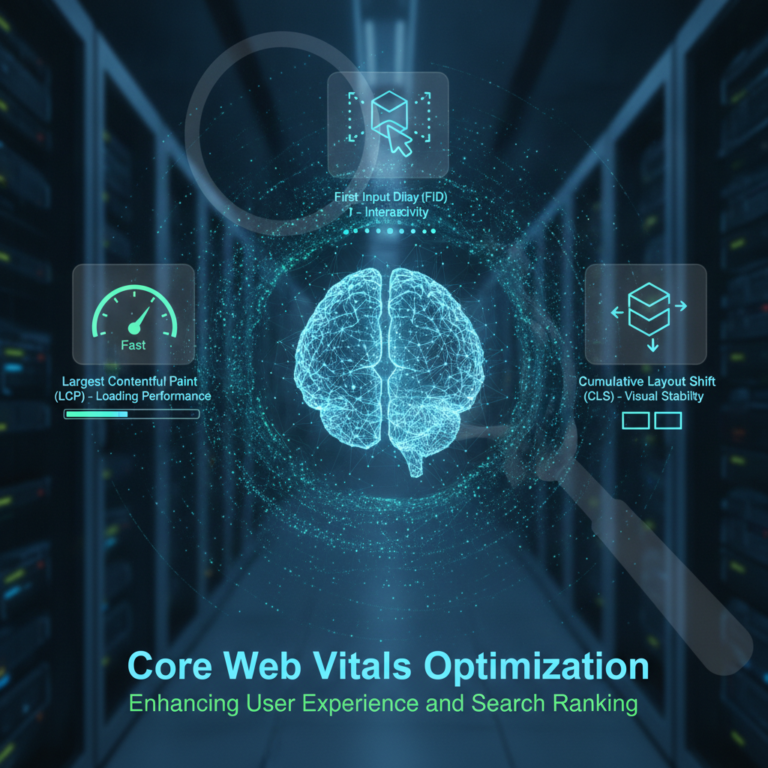 Core Web Vitals Optimization
 LCP, INP, CLS Explained for Irish Business Owners
 How to Pass Core Web Vitals on a Dublin WordPress Site
 Core Web Vitals vs Mobile Speed: Which Matters More for SEO?
 Core Web Vitals Your Site Speed Is Costing You Money