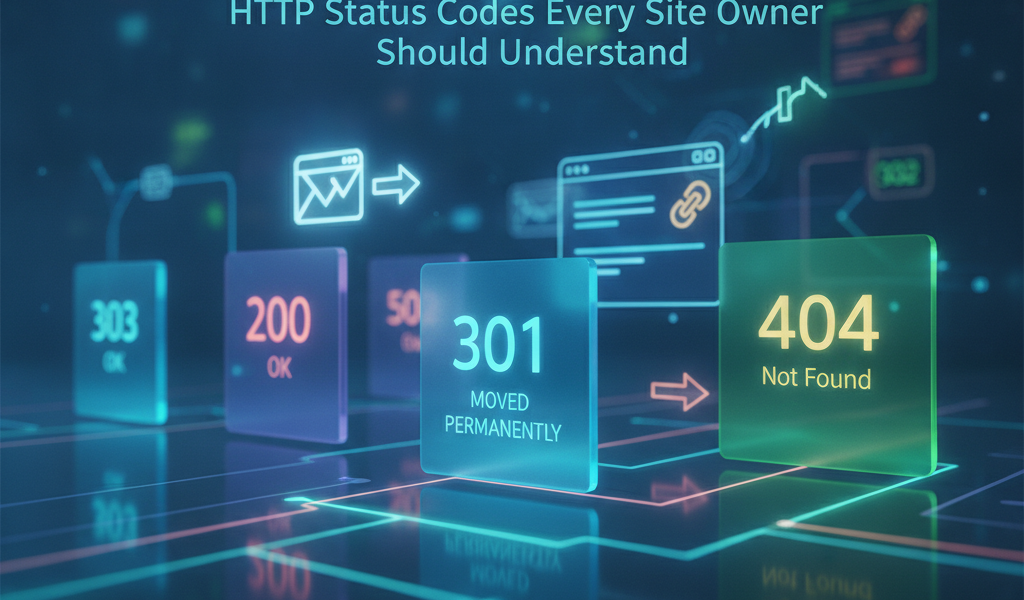
If you’ve ever clicked a link and landed on a page that says "404 Not Found" or been redirected somewhere unexpected, you’ve already encountered HTTP status codes in action. These three-digit responses are how web servers communicate with browsers — and understanding them isn’t just for developers. Every site owner who cares about user experience, search visibility, and technical health needs to know what these codes mean and when they matter.
What Are HTTP Status Codes?
HTTP status codes are standardised responses issued by a web server whenever a browser (or any client) makes a request. They tell the requesting party what happened — did the page load successfully? Was there a redirect? Did something break on the server? The codes are grouped into five classes, each starting with a different number.
Here’s a quick breakdown of those five classes:
- 1xx – Informational: The request was received and is being processed
- 2xx – Success: The request was received, understood, and completed
- 3xx – Redirection: Further action is needed to complete the request
- 4xx – Client errors: Something went wrong on the user’s side (wrong URL, missing permissions, etc.)
- 5xx – Server errors: Something went wrong on the server’s side
Most site owners will rarely deal with 1xx codes. The rest, however, come up regularly — and knowing what they mean can save you hours of troubleshooting.
The Success Codes: When Things Go Right
200 OK
This is the one you always want to see. A 200 response means the server successfully returned the requested content. Every page that loads properly should be returning a 200.
If you’re auditing your site and find important pages returning anything other than 200, that’s worth investigating immediately.
201 Created
Less relevant for typical websites but important for web applications — a 201 tells the client that a new resource was successfully created. You’ll see this most often with form submissions or API calls.
Redirects: The 3xx Codes That Actually Matter
Redirects are among the most commonly misused status codes on the web, and getting them wrong has real consequences for both users and search rankings.
301 Moved Permanently
This is the redirect you use when a page has moved to a new, permanent location. It tells search engines to pass the ranking value (often called "link equity" or "PageRank") from the old URL to the new one. If you’ve ever migrated a website or changed your URL structure, 301s are what keep your organic traffic intact.
A crucial point: using a 302 when you should be using a 301 is one of the most common technical SEO mistakes. Google has stated that 301s pass ranking signals, while 302s may not — at least not immediately.
302 Found (Temporary Redirect)
A 302 tells browsers and bots that a page has moved temporarily. Use this when a page is down for maintenance or when you’re A/B testing different versions of a page without wanting to permanently redirect traffic.
The distinction between 301 and 302 sounds subtle, but it matters enormously over time.
307 and 308
These are less frequently discussed but increasingly relevant. A 307 Temporary Redirect is the modern equivalent of a 302, preserving the original HTTP method (GET or POST) during the redirect. A 308 Permanent Redirect does the same but for permanent redirects. If you’re running a site where form data or POST requests are involved, these codes help prevent data loss during redirects.
Client-Side Errors: The 4xx Codes You’ll See Most Often
These codes indicate that the request itself has a problem — usually either a bad URL, a permissions issue, or something the server couldn’t find.
404 Not Found
The most famous error on the internet. A 404 means the server can’t find the requested page. This could be because the page was deleted, the URL was typed incorrectly, or an internal link is broken.
From an SEO perspective, having too many 404 errors — especially ones being linked to from other pages — wastes your crawl budget and creates a poor user experience. Tools like Google Search Console will flag these directly.
What to do: Redirect deleted pages to their most relevant replacement using a 301. If there’s no suitable replacement, a custom 404 page with helpful navigation is far better than a generic error screen.
401 Unauthorised
A 401 means the user hasn’t authenticated yet — they need to log in before accessing the resource. You’ll see this on password-protected areas of a site or with API endpoints requiring authentication.
403 Forbidden
Similar to a 401, but different in an important way: with a 403, the server knows who the user is — it’s just not letting them through. This might appear if file permissions are misconfigured on your server, or if you’ve blocked a specific IP address.
410 Gone
This one is underused but genuinely useful. A 410 tells search engines that a page is permanently gone — not just missing, but intentionally removed. Unlike a 404, which leaves some ambiguity, a 410 signals that the page should be deindexed promptly.
If you’re removing old product pages or discontinued content and don’t have a natural redirect destination, a 410 is often the right call.
429 Too Many Requests
You’re less likely to see this as a site owner, but more likely to trigger it as a developer. A 429 means a user or bot has made too many requests in a given timeframe. It’s a rate-limiting response, often used to protect servers from abuse or overload.
Server-Side Errors: The 5xx Codes That Demand Immediate Attention
When a 5xx error appears, the problem is on the server — not the user. These can affect every visitor hitting your site and can cause significant drops in search rankings if left unresolved.
500 Internal Server Error
This is the generic catch-all for server-side problems. It means something went wrong, but the server can’t be more specific about what. Common causes include PHP errors, database connection failures, or a misconfigured .htaccess file.
When a 500 error appears, check your server error logs first. The log will usually point directly at the issue.
502 Bad Gateway
A 502 means the server received an invalid response from an upstream server — often a sign of overload, a crashed backend service, or a miscommunication between systems. If you’re using a content delivery network (CDN) or a reverse proxy like Nginx in front of your application, 502s can appear when that middleman can’t get a proper response.
503 Service Unavailable
This one typically means the server is temporarily unavailable — either overloaded or down for maintenance. Unlike a 500, a 503 is often expected and planned. Many CMS platforms (like WordPress) display a 503 during major updates.
If your site is returning 503s unexpectedly, it could signal a traffic spike beyond your hosting plan’s limits, or a failed background process consuming too many server resources.
504 Gateway Timeout
Similar to a 502, but in this case the upstream server didn’t respond in time. This is common on sites with slow database queries, third-party API calls that time out, or hosting environments with limited resources.
Why HTTP Status Codes Matter for SEO
Search engines like Google use HTTP status codes to understand the structure and health of your website. Googlebot crawls your site and records these responses. A pattern of 5xx errors can cause Google to reduce crawl frequency, potentially leaving new or updated content undiscovered.
Redirects, when used correctly, preserve your existing authority. A site that migrates from HTTP to HTTPS — which every site should do — and properly implements 301 redirects will retain most of its rankings. Sites that fail to do this often see significant organic traffic loss post-migration.
John Mueller of Google has discussed on multiple occasions how crawl errors and redirect chains (multiple redirects chained together) can dilute link equity and slow down indexing. Keeping your redirect chains to a single hop is best practice.
How to Monitor Status Codes on Your Site
You don’t need to be a developer to keep tabs on how your site is performing. Several accessible tools make this straightforward:
- Google Search Console: The Coverage report shows pages with 4xx and 5xx errors that Googlebot has encountered
- Screaming Frog SEO Spider: Crawls your site locally and reports status codes for every URL
- Ahrefs or SEMrush: Site audit tools that flag redirect issues, broken links, and error pages
- Uptime monitoring tools (e.g., Uptime Robot): Alert you in real time when your site returns a 5xx error
Setting up automated alerts for 5xx errors is particularly important. A 500 or 503 error that goes unnoticed for 24 hours during peak traffic can cause real damage — both to user trust and search visibility.
Frequently Asked Questions
What’s the difference between a 301 and a 302 redirect?
A 301 is a permanent redirect and passes ranking signals to the new URL, making it the right choice for site migrations or permanently moved content. A 302 is temporary and is used when you intend to bring the original URL back at some point — like during maintenance windows or short-term A/B tests.
Can too many 404 errors hurt my SEO?
On their own, a handful of 404s won’t tank your rankings — Google understands that pages come and go. However, a large volume of broken internal links or incoming backlinks pointing to 404 pages wastes crawl budget and loses potential ranking value. Cleaning these up regularly is good housekeeping.
Is it better to use a 410 or a 404 for deleted pages?
If a page has been intentionally removed and won’t be coming back, a 410 is the more precise response. It tells search engines to remove the page from their index faster than a 404 typically would. For most site owners, though, redirecting deleted pages to relevant alternatives is preferable to either.
Why does my site show a 403 error even though the page exists?
A 403 usually comes down to file permissions or server configuration. The page exists, but the server isn’t allowing access. This often happens after a site migration or when plugin conflicts affect WordPress file permissions. Check your server’s file and folder permissions, and consult your hosting provider if it persists.
How do I fix a 500 Internal Server Error?
Start by checking your server error logs — these are usually accessible through your hosting control panel (cPanel, Plesk, etc.). Common culprits include a faulty .htaccess file, a PHP memory limit, or a recently installed plugin or theme. Disabling recently changed components one at a time often isolates the issue quickly.
Conclusion
HTTP status codes are the language your website uses to communicate with the world — with browsers, with users, and with search engines. Understanding them doesn’t require a computer science degree; it requires knowing which codes to look for, what they’re telling you, and what action to take when something goes wrong.
From getting your redirects right during a site migration to catching 500 errors before they affect your rankings, the practical value of this knowledge pays off quickly. Make it a habit to audit your site‘s status codes regularly — even once a quarter can catch problems before they become expensive.
Get in Touch
If you’re unsure how your site is handling redirects, seeing unexplained errors in Google Search Console, or planning a site migration and want to get it right the first time, our team is here to help. We’re happy to talk through your specific situation and offer practical, no-jargon guidance.
Reach out whenever it suits you — email us at moc.ssobebolg@ofni or call +353 1 868 2345 and we’ll be glad to help.
Related Posts
 Broken backlinks how to find and fix them on your site
 Url redirects for SEO a technical guide
 What is a sitemap
 Best practices for SE0 redirection strategies
 Best practices
for SEO redirection strategies
Best practices
for SEO redirection strategies Challenges Facing Google Indexing API For Job Boards
 Technical SEO Audit for Dublin Websites and Startups
 Proven Methods to Speed Up Google Search Indexing